
Your sales team may use “customer type” to describe an industry, while marketing uses it to describe company size. If both teams update the same field, reports can mix two different meanings without anyone noticing.
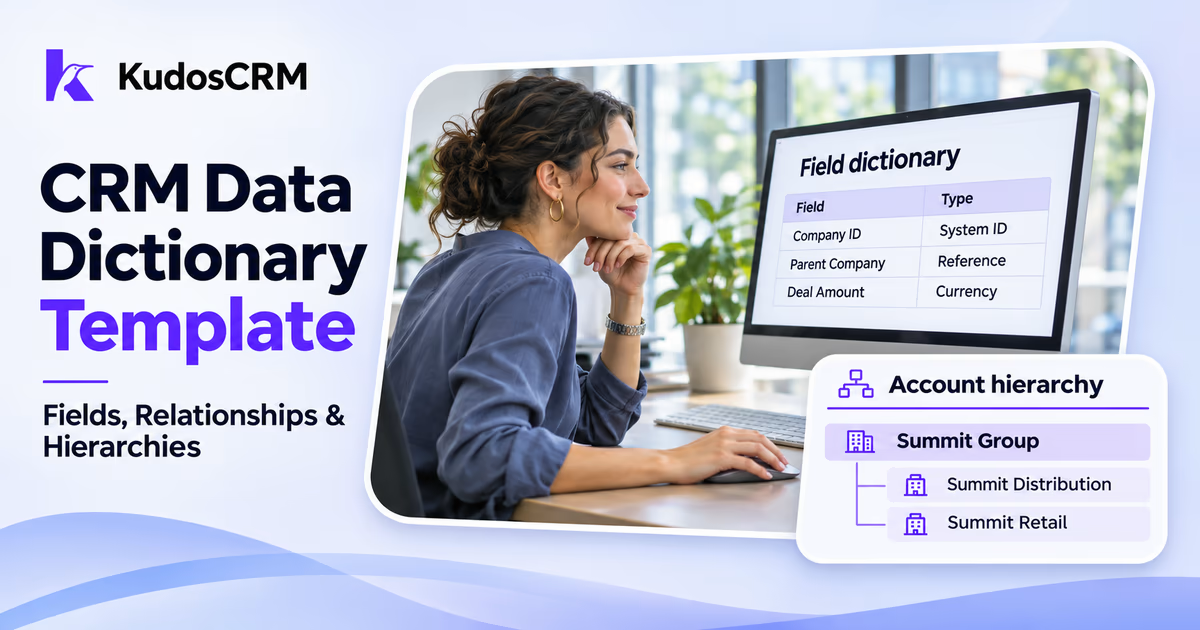
A CRM data dictionary gives each field a clear definition, format, owner and set of rules. It also explains how contacts, companies and deals connect, so your team can configure the CRM consistently.
Use the filled-in template below to document your fields, record relationships and account hierarchy. Adapt the examples to the records and rules your CRM actually supports.
What is a CRM Data Dictionary?
A CRM data dictionary is a reference that describes the fields in your CRM: what they mean, what values they accept, who owns their definition and how other processes use them.
For example, “deal amount” might mean an estimated contract value before tax. Without that definition, one rep could enter a monthly fee while another enters the full annual contract value. Both entries look like valid numbers, but the resulting forecast compares different measures.
A dictionary explains those meanings. A data model describes the objects and relationships, while a field mapping document explains how information moves between systems. Together, they support practical CRM database design without requiring business users to design physical database tables.
The U.S. Geological Survey’s data dictionary guidance similarly emphasizes descriptions, data properties, relationships and rules that help people interpret shared data consistently.
What Should Your CRM Data Dictionary Template Include?
A useful CRM data dictionary template should identify the field, explain its business meaning and record the rules needed to use it correctly. Include standard fields as well as custom fields that affect your work.
Organize the information around four questions:
What is it? Record the object, display label, actual field identifier, definition and data type.
What values belong here? Specify examples, allowed values, validation, defaults and when a value is required.
Who is responsible? Name the business owner, authoritative source and users or systems allowed to update it.
What depends on it? List relevant reports, automations, integrations, access restrictions and the last review date.
The following example covers selected fields for a B2B sales team. Its field keys and requirements are illustrative, not KudosCRM API specifications. Replace them with the actual identifiers and supported rules in your workspace. The final column names the team accountable for the field’s definition or configuration.
Object/Example key | Business Definition | Type/Example | Required When | Rule / Accountable Team |
|---|---|---|---|---|
Company · | Identifier of the company record | System ID: | Assigned by the CRM | Preserve for record matching; CRM admin |
Company · | Organization name displayed in the CRM | Text: Summit Distribution | At creation in this example | Do not assume names are unique; Sales Ops |
Company · | Immediate parent in the chosen account hierarchy | Company reference: | When a parent relationship is confirmed | Reject self-links and circular chains; Sales Ops |
Company · | Industry category used for segmentation | Dropdown: Distribution | Before industry-based segmentation | Maintain an agreed option list; Marketing Ops |
Contact · | Identifier of the contact record | System ID: | Assigned by the CRM | Keep separate from email matching; CRM admin |
Contact · | Name used to identify the person in the workspace | Text: Maya Sharma | At creation in this example | Preserve the person’s name format; Sales Ops |
Contact · | Main email address used for communication | Email: | Before an email-based workflow needs it | Validate format; define shared-address handling; Sales Ops |
Contact · | User responsible for the next action | User reference: | Before a sales handoff | Store the assigned user, not “round-robin”; Sales Ops |
Deal · | Identifier of the opportunity record | System ID: | Assigned by the CRM | Count once within the chosen reporting scope; CRM admin |
Deal · | Company associated with the opportunity | Company reference: | Before an account-based quotation in this example | Resolve to an existing company record; Sales Ops |
Deal · | Estimated contract value before tax, in the deal currency | Currency amount: 20,000 | Before inclusion in a value forecast | Use the agreed value basis consistently; Sales Ops and Finance |
Deal · | Currency associated with the deal amount | Currency code: USD | Whenever an amount is recorded | Use the CRM’s supported currency settings; Finance |
Deal · | Current forecast of the day the deal will close | Date: | Before inclusion in a dated forecast | Update when the forecast changes; Sales Ops |
This is a starting example rather than a complete schema. Add the allowed options, source system, default behavior and downstream dependencies for each relevant field. If your CRM stores currency or ownership through built-in settings, document those settings instead of creating duplicate fields.
Required Fields and Validation Rules
Document the business event that makes a field necessary. An expected close date might become required when a deal enters your forecast, while a loss reason becomes relevant when an opportunity closes unsuccessfully.
Connect those conditions to your pipeline stages and movement rules. Record whether each rule operates on forms, imports, API updates or stage changes, then test the paths your team uses; a required marker in one interface does not establish enforcement everywhere.
Field Names and Default Values
Copy the CRM’s actual internal identifier into the dictionary alongside a readable label. Naming conventions vary between platforms, so use a consistent convention for fields you control without renaming existing identifiers to match this example.
Defaults must reflect a known fact or an agreed policy. For instance, a lead source should become “Web” only when the capture process establishes that origin; otherwise, leave it blank or use a defined unknown value rather than inventing attribution.
How Do You Document CRM Record Relationships?
Document which record types can connect, how many links are allowed and what each connection means. A relationship needs more detail than “Contact links to Company.”
Start with the way your contact and company records connect to other work. The following register illustrates relationships to check, rather than a structure every CRM must implement.
Relationship | Example business rule | Details to document |
|---|---|---|
Contact ↔ Company | A contact has a primary company; additional affiliations use supported associations | Whether multiple affiliations are supported, which is primary and how changes are handled |
Contact ↔ Deal | A person can participate in several deals, and a deal can involve several people | Supported association roles and whether a role belongs to each individual deal |
Activity ↔ Related records | An interaction connects to its participants and relevant business records | Supported links, participant limits, visibility and how the activity appears in timelines |
Company → Parent company | Each company has at most one immediate parent in this example’s tree | Meaning of the parent link, cycle prevention and what happens when the parent changes |
Use record identifiers to establish links rather than relying on matching company names. Relational databases use primary and foreign key constraints to identify rows and maintain valid references; a SaaS CRM may expose comparable concepts through associations or lookups.
Keep relationship-specific facts on the relationship where the platform supports them. A person could be the decision-maker on one deal and an adviser on another, so a single permanent “deal role” field on their contact record would lose that distinction.
How Do You Build a CRM Account Hierarchy?
A CRM account hierarchy connects related company records through defined parent and child relationships. Specify what that structure represents before linking records: legal ownership, a sales reporting group or another relationship your business needs.
Consider this fictional example:
Summit Group —
AC-001: top-level company with no parent.Summit Distribution —
AC-002: subsidiary withAC-001as its parent.Summit Retail —
AC-003: subsidiary withAC-001as its parent.
Each company remains a separate record, with its own contacts, opportunities and responsibilities. The parent relationship adds group context without merging those records.
Parent and Child Account Rules
For a simple tree, each company has no more than one immediate parent, and the parent must reference an existing company. Prevent self-links and circular chains, and check the platform’s supported hierarchy depth and permissions.
A franchise agreement, reseller relationship or shared brand does not necessarily establish legal ownership. If you need several relationship types, document them separately through supported associations rather than forcing every connection into one parent field.
Group Totals and Reporting Rules
Define the metric and reporting scope separately from the hierarchy. If the two subsidiaries have the only included open deals, worth USD 20,000 and USD 30,000, their combined open deal value is USD 50,000.
That calculation still needs rules for included companies, deal status, reporting period, currency conversion where applicable and duplicate counting. Won deal value is also different from recognized revenue, so label the total according to what it actually measures.
Document how changing a parent affects current reports and whether historical group membership needs to be preserved. Confirm the reporting behavior with a small sample account group before relying on its totals.
How Do You Create a CRM Field Mapping Template?
A CRM field mapping template connects a source field to its destination and records any transformation needed. Build it from the dictionary so mappings follow business meanings as well as field names.
Keep this mapping reference beside the field definitions:
Source field | Intended destination | Transformation or decision | Acceptance check |
|---|---|---|---|
External customer ID | Company association | Resolve through a source-to-CRM ID crosswalk | The record links to the intended company |
Customer category | Industry or a separate category field | Confirm the meaning before choosing the destination | An account tier does not become an industry |
Expected close | Expected close date | Parse the source format; define timezone handling if a timestamp becomes a date | The intended business date is preserved |
Lead origin | Original acquisition source | Map agreed values and preserve an established original source | A later interaction does not overwrite first-touch attribution |
An ID crosswalk records which source identifier corresponds to which CRM record identifier. Keep the source system attached to the source ID so two systems using the same number do not accidentally identify the same customer.
Mapping documentation supports integrations and imports, but it does not replace a transfer plan. Use the separate CRM data migration guide for the wider migration process.
How Do You Keep the Dictionary Up to Date?
Update the dictionary whenever a field’s meaning, options, requirements or relationships change. Assign someone to maintain the document, while business owners approve definitions and administrators implement the supported configuration.
Before publishing a change, check its reports, forms, automations and integrations. Record the reason, approver and effective date, then test representative records and communicate any change that affects users.
When several systems can update a field, define which source takes priority and whether a blank value means “leave unchanged” or “clear the existing value.” These rules prevent a correct field definition from being undermined by conflicting writes.
Review fields as your processes evolve. Low usage can prompt investigation, but check historical reporting and other dependencies before retiring a field. Record whether it is proposed, active or deprecated so another administrator can understand its status.
For problems already present in the records, use the CRM data cleansing guide. The dictionary provides the definitions and rules that the cleanup should follow.
How Can You Apply the Dictionary in KudosCRM?
Use the dictionary as a reference when configuring KudosCRM’s custom fields and objects. The product documentation describes a draft-and-publish workflow and a schema audit log, which help teams review changes and trace who changed the model.
Match each example to the actual fields and settings in your workspace. KudosCRM also documents parent and child company relationships with cycle protection; your dictionary should explain what those links mean for your business and how you will check the resulting reports.
Before publishing a change, test the relevant record, relationship, stage rule and report. A useful dictionary should let another team member explain the result without guessing what the original administrator intended.